Live monitoring
The Monitoring page is the dispatch center during business hours — letting Dispatchers track realtime vehicle positions, trip progress, and react quickly to issues.
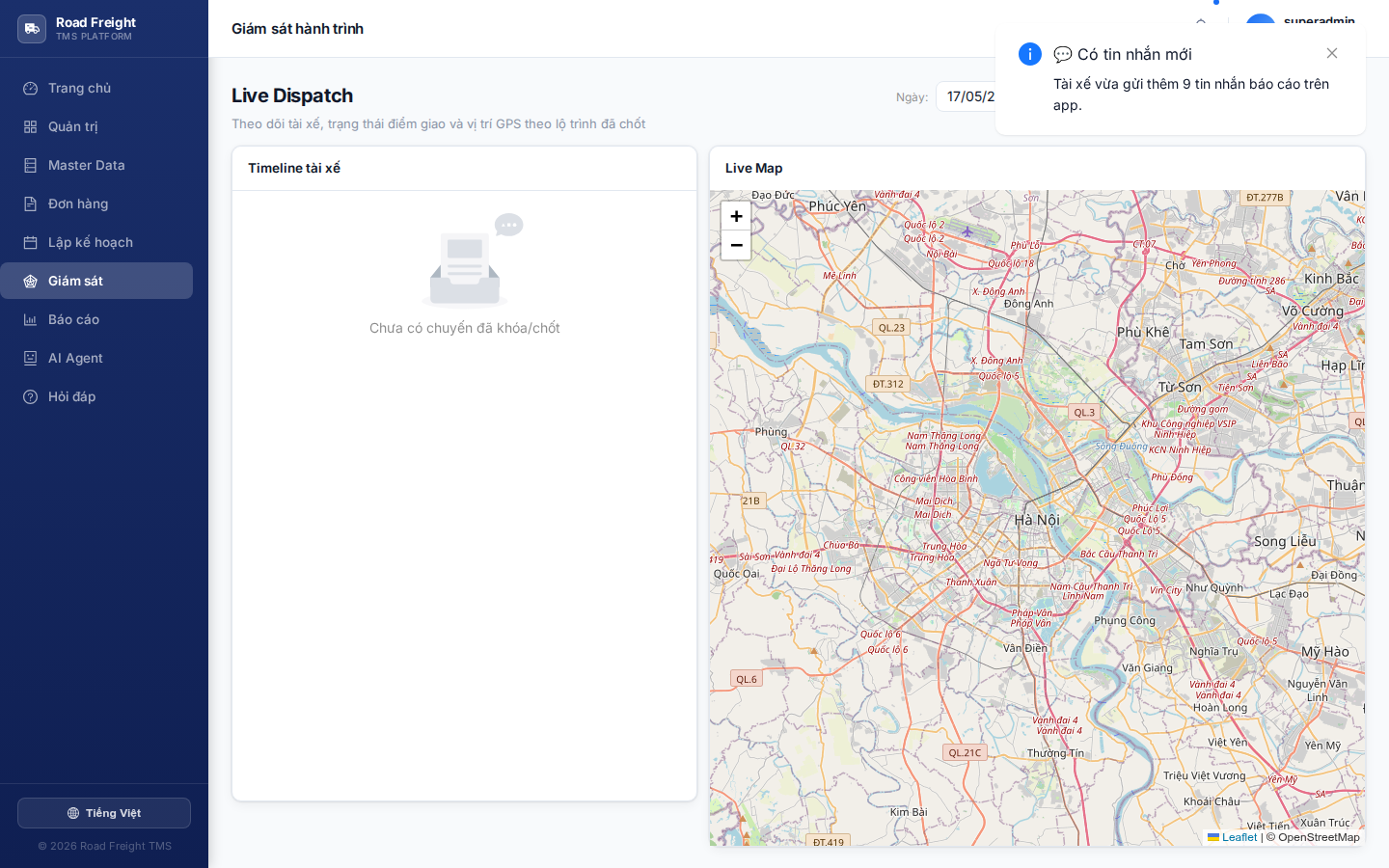
Page layout
| Area | Content |
|---|---|
| Map (center) | All running vehicles on one Leaflet/OSM map |
| Trip list (right) | Card per trip: vehicle, driver, progress, ETA |
| Filters (top) | Filter by date, status, depot |
Map markers
Each vehicle = a colored marker on the map:
| Color | Meaning |
|---|---|
| 🟢 Green | Running on planned route (IN_PROGRESS) |
| 🔵 Blue | Just started (LOADING / just left depot) |
| 🟠 Orange | Returning to depot (RETURNING) |
| 🔴 Red | Route deviation — alert! |
| ⚫ Gray | Lost GPS signal > 5 minutes |
Click a marker for a detail popup: driver, vehicle code, next stop, current speed, last update time.
Realtime GPS
The mobile driver app pushes location to the server every 30 seconds while a trip is active. On the map:
- Marker = current position
- Dashed line = planned route (per plan)
- Solid line = actual route (drawn from historical GPS points)
The system automatically compares actual GPS vs the dashed planned route. If deviation exceeds 200m for 3 consecutive samples → marker turns 🔴 + notification fires.
Common causes: driver took a different road (traffic, avoidance), wrong address, or needs verification.
Trip detail
Click a trip card on the right or a map marker → opens detail panel:
- Vehicle + driver info (with click-to-call phone)
- Stop list with status:
- ⏳ Not yet arrived
- 📍 Currently at
- ✅ Completed (with POD photos)
- ❌ Failed (with reason + photo)
- Progress: X/N stops delivered
- Actual total km vs planned
- COD collected: total cash + per-stop detail
Trip status
ASSIGNED ─(driver confirms)─> DRIVER_CONFIRMED
   │
   └─(starts)─> LOADING ─> IN_PROGRESS ─> RETURNING ─> COMPLETED
                                      │
                                      └─(issue)─> CANCELLED
Dispatcher actions
1. Call the driver
Click the phone number in the card → opens dialer on PC (requires softphone) or copy the number.
2. Send in-app message
Click 💬 on the trip → type text → driver gets notification on the app.
3. Mark a stop as failed
When the driver can't be reached, the Dispatcher can mark on their behalf:
- Click stop → "Mark failed" → choose reason (customer absent, wrong address, rejected...)
4. Close trip early
For serious incidents:
- Click "End trip" → moves to
CANCELLED - System writes Audit Log
- Undelivered orders return to
OPEN(awaiting re-planning)
Filters
- Date: defaults to today
- Status: tick statuses to view
- Origin depot: filter by parent depot
- Has alert: show only trips with deviation / GPS loss
Next
- Incident handling — When a driver reports a problem