Route planning
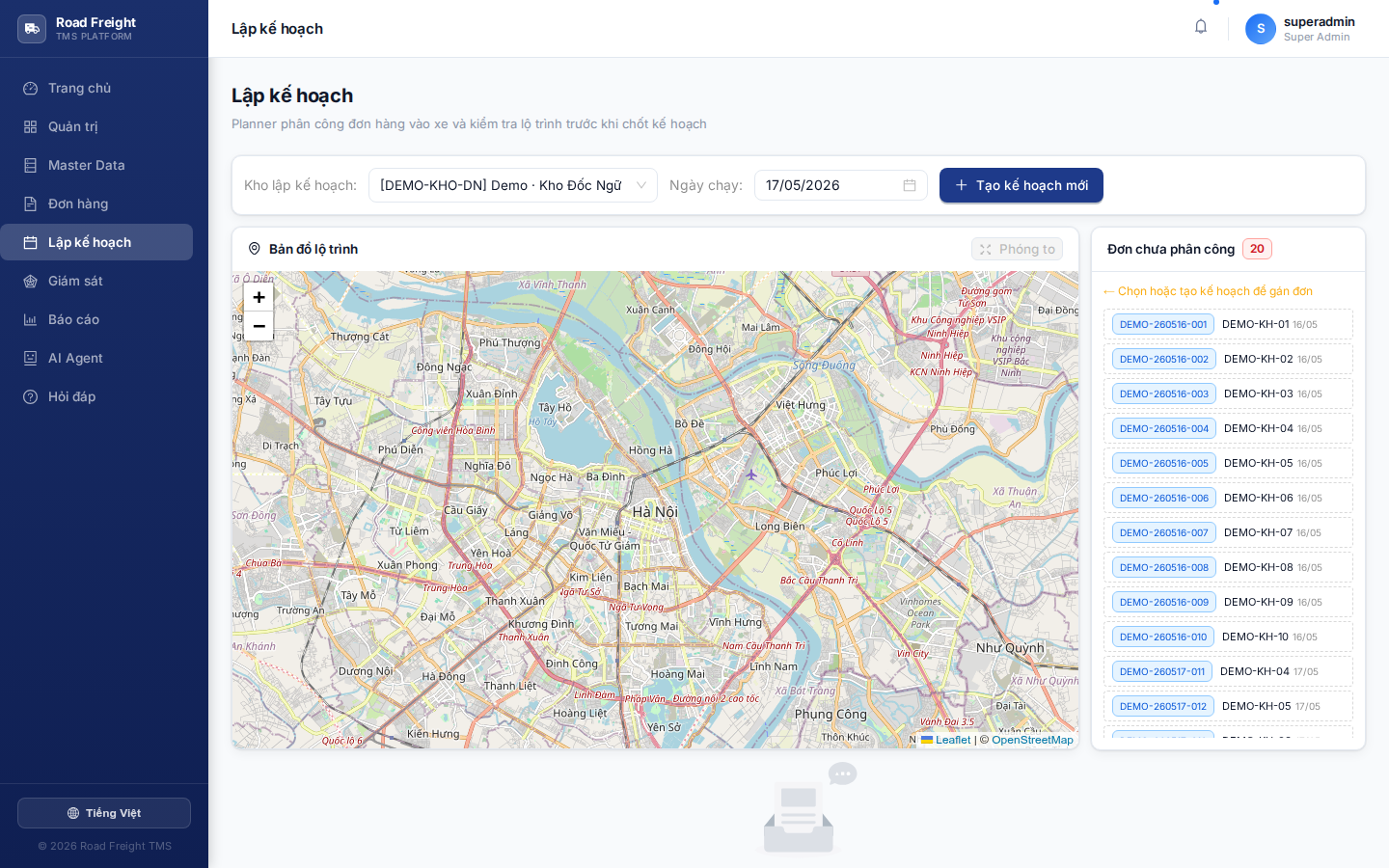
This is the core feature of the system — automatically assigning orders to available vehicles, optimizing routes to reduce transport cost.
When to use
Use this feature when:
- You have a list of approved orders for the day
- You need to assign orders to vehicles optimally (fewest vehicles, fewest km)
- You need to lock the plan to hand off to Dispatcher for execution
Overall workflow
1. Choose depot & run date
       ↓
2. System loads unassigned orders
       ↓
3. Create new plan (run CVRP optimization)
       ↓
4. Review routes on map
       ↓
5. Assign drivers per vehicle
       ↓
6. Finalize plan → lock, hand off
Step 1 — Choose depot and date
At the top of the page, choose:
- Planning depot: a child organization of type "depot", the dispatch origin
- Run date: planned delivery date
Only depots within your permission scope appear. If a depot is missing, contact Admin to grant access.
Step 2 — View unassigned orders
The right column shows the list of approved orders for that date but not yet in any plan.
Each order shows:
- Order code + customer name
- Total weight (kg), volume (m³)
- Delivery window (if specified)
Step 3 — Create new plan
Click the blue "+ Create new plan" button to start.
The system will:
- Take all unassigned orders for the day
- Take the available vehicles of the depot
- Call HGS-CVRP (Hybrid Genetic Search — Vidal 2022) to solve the routing problem, with LNS-SA and NN+2opt as benchmark baselines
- Generate optimal routes (one route = one vehicle)
Takes about 3-10 seconds depending on order count.
Optimized result
After running, the system displays:
Each route shows:
- Vehicle code assigned
- Number of stops + total km
- Load used / max (e.g. 1800/2000 kg = 90%)
- Estimated time out + back
Step 4 — View route map
The map in the middle shows all routes in different colors:
- 🟢 Green = first route
- 🔵 Blue = second route
- 🟠 Orange = third route
- ... (each route a color)
Click a stop on the map to see order details at that point.
Click "Maximize" at the top of the map to enter full-screen mode — easier for complex routes.
Step 5 — Assign drivers
On each route card, click the "Choose driver" dropdown.
The list only shows drivers who:
- Are within your scope
- Status Active
- Not assigned to another trip that day
Manual adjustment
You can:
- Drag orders between routes
- Remove orders from a route (returns to "unassigned" list)
- Reorder stops within a route
Step 6 — Finalize plan
When satisfied, click the red "Finalize routes" button at the bottom.
What happens after finalize?
- ✅ Plan transitions to LOCKED — no more editing
- ✅ Each route automatically becomes a Trip
- ✅ Assigned drivers receive realtime notification on the mobile app
- ✅ Orders move to "Planned" status
- ✅ Dispatcher can start monitoring on the Monitoring page
After finalize, to edit a plan you must unlock (Admin permission required) — this action is recorded in Audit Log.
AI Agent — Plan with a command
You can skip all these steps by commanding the AI Agent:
See the AI Agent panel screenshot for the interface.
Example commands:
- "Plan tomorrow"
- "Optimize routes for 20/5"
- "Create today's plan for Dong Da depot"
The AI Agent opens the page, sets the date, and runs the optimization for you.
FAQ
Q: Why are some orders not assigned? A: Common causes: (1) all vehicle capacities full, (2) order is too far from depot, (3) customer missing coordinates. Check the red warning under each order.
Q: Can I rerun optimization multiple times? A: Yes. Each "Create new plan" click discards the unfinalized plan and reruns.
Q: Can I prioritize a specific order? A: Yes. After optimization, drag the order to the top of its route to deliver earlier.
Q: How is cost calculated?
A: Based on vehicle config in Master Data: FixedCost (per day) + CostPerKm × km. Sum across routes = total plan cost.
Next
- Live monitoring — Track vehicles after finalize
- Incident handling — When something goes wrong on the road