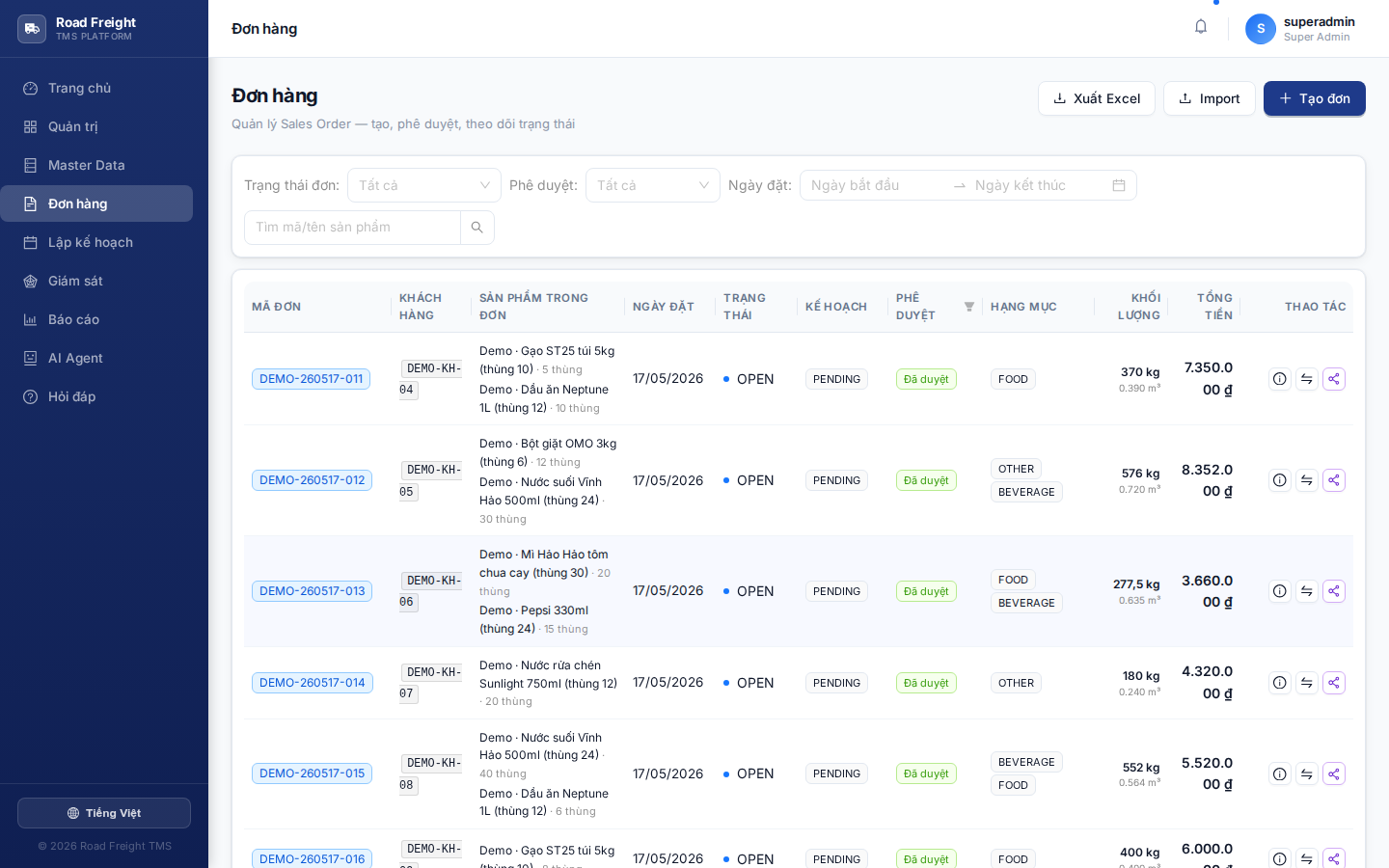
Order management
Sales Orders are the input to the entire transport workflow. One order = one customer + product list + delivery date + address.
Two parallel lifecycles
Each order has two statuses in parallel:
Approval status
PENDING ──(Planner/Admin approves)──> APPROVED ──(can plan)
   │
   └──(rejected)──> REJECTED
Delivery status
OPEN ──(packed)──> PICKED_PACKED ──(vehicle delivering)──> SHIPPED
                                                            │
                                              ┌─────────────┴─────────────┐
                                              ▼                           ▼
                                         DELIVERED                   FAILED / CANCELLED
Only APPROVED orders can enter planning. PENDING orders do not appear in the "Unassigned" list on the Planning page.
Create a new order
Method 1 — Manual (single order)
Click "+ Create order":
- Order code (OrderCode): auto-generated or manual
- Customer: pick from Master Data
- Order date + Expected delivery date
- Products: add line items, each =
Product × Quantity - Delivery window (optional): early/late, improves routing accuracy
- COD amount (optional): if customer pays cash on delivery
- Notes
After creation, order status is PENDING awaiting approval.
Method 2 — Bulk Excel import
Click "Import Excel":
- Download template
- Open Excel, one row = one order (same OrderCode = merged into one multi-line order)
- Upload — system reports created orders & failed rows
Approve / Reject orders
On a PENDING order row:
- ✅ Click approve → moves to
APPROVED - ❌ Click reject → modal asks for reason, moves to
REJECTED
You can bulk-select with checkboxes and click "Bulk approve".
By default, Planners approve orders. For a 2-tier approval flow (Planner proposes → Admin approves), the Admin can adjust the order.approve permission.
Filters
The top filter bar supports multi-criteria search:
- Customer: search by name/code
- Approval status: PENDING / APPROVED / REJECTED
- Delivery status: OPEN / PICKED_PACKED / SHIPPED / DELIVERED / FAILED
- Order date range / Delivery date range
- Planned yet: yes/no
Share tracking link with customers
Each order has a public lookup URL of the form:
https://<domain>/track/<OrderCode>
On the order row, click 🔗 → modal shows the URL → click "Copy" → send via Zalo/SMS/email.
The customer opens the link → sees realtime:
- Current order status
- Live vehicle position (if SHIPPED)
- Estimated ETA
- Driver information (name + phone)
See also: Public order tracking.
Excel export
Click "Export Excel" → downloads .xlsx with all orders matching the current filter, including:
- Order + customer + product information
- Approval + delivery status
- Total value, COD
- Trip code (if planned)
Use it to report to customers / accounting.
Next
- Route planning — Assign
APPROVEDorders to vehicles - Transportation reports — Aggregate order metrics by period