User management
This page manages all employees with system access — both web (Planner/Dispatcher/Accountant) and mobile (Driver).
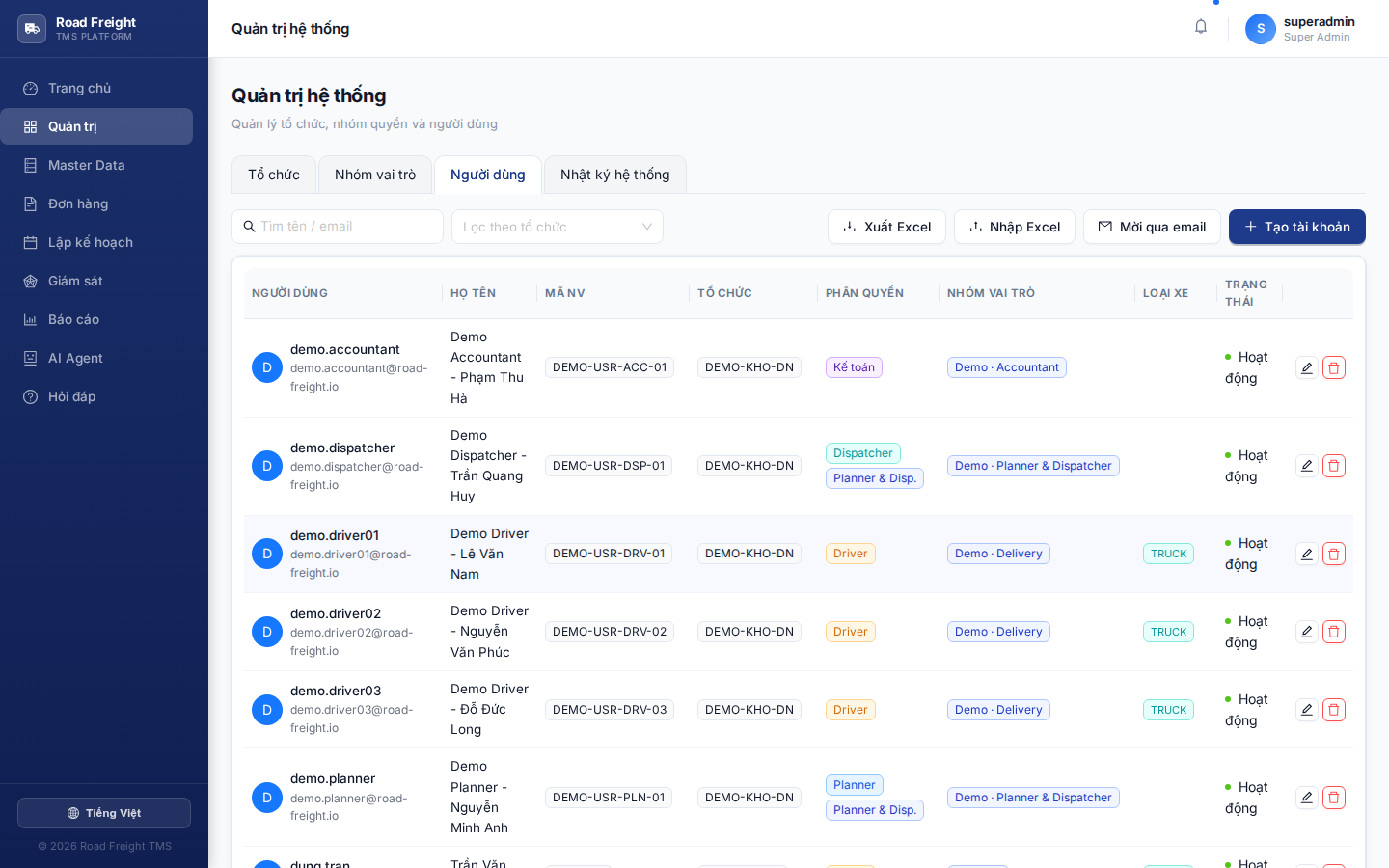
Invite a new user
The safest way to add a user is to invite by email — the user sets their own password, you never see it.
Invite flow
- Click "+ Invite user"
- Fill in:
- Email: staff member's address
- Full name: displayed in the system
- Role group: one of the 5 presets or custom
- Organization scope: subtree of data the user can see
- Click "Send invitation"
The user receives an activation email → sets password → can sign in immediately.
Activation link expires after 48 hours. If they miss it, go to the Users page, click ↻ on the pending row to resend.
Column list
| Column | Content |
|---|---|
| Name + Email | Basic info |
| Role group | Current preset |
| Organization | DAC scope |
| Status | Active / Pending (not activated) / Disabled |
| Last login | Track if active |
| Actions | Edit / Reset password / Disable |
Edit user info
Click ✏️ → modal opens to update:
- Display name
- Role group
- Organization scope
- Contact phone
Email cannot be changed (it's the identifier + login path).
Reset password
Two methods:
Method 1 — Send reset link (recommended):
- Click 🔑 on the user row
- System emails a reset link
- User sets their own new password
Method 2 — Set manually (emergencies only):
- In the edit modal, click "Set new password"
- Enter new password → user must change it on first login
Never share passwords over unencrypted chat / email. Method 1 is always safer because only the user knows the password.
Disable account
When an employee leaves:
- Click 🚫 on the user row
- Status moves to
Disabled - User can no longer sign in
- Historical data preserved — never deleted, to keep audit trail
Click ✓ on a Disabled user → restored to Active.
Link User ↔ Driver
The system has 2 separate entities:
- User: login account (Email + Password)
- Driver: driver profile (License, Phone, Vehicle link)
For a driver to log into the mobile app, you must link the two:
- Create a Driver record in Master Data (or use existing)
- Invite a new user with role group "Driver"
- In the user modal, choose "Link with driver" → pick the matching Driver
After linking, the mobile app logs in with the user's email + receives the Driver's trips.
Next
- Role groups — Tune presets to your structure
- Audit log — See who did what